Approval stages, Group Approvers and default values

Nicki Pabst Rasmussen
Co-founder and CEO
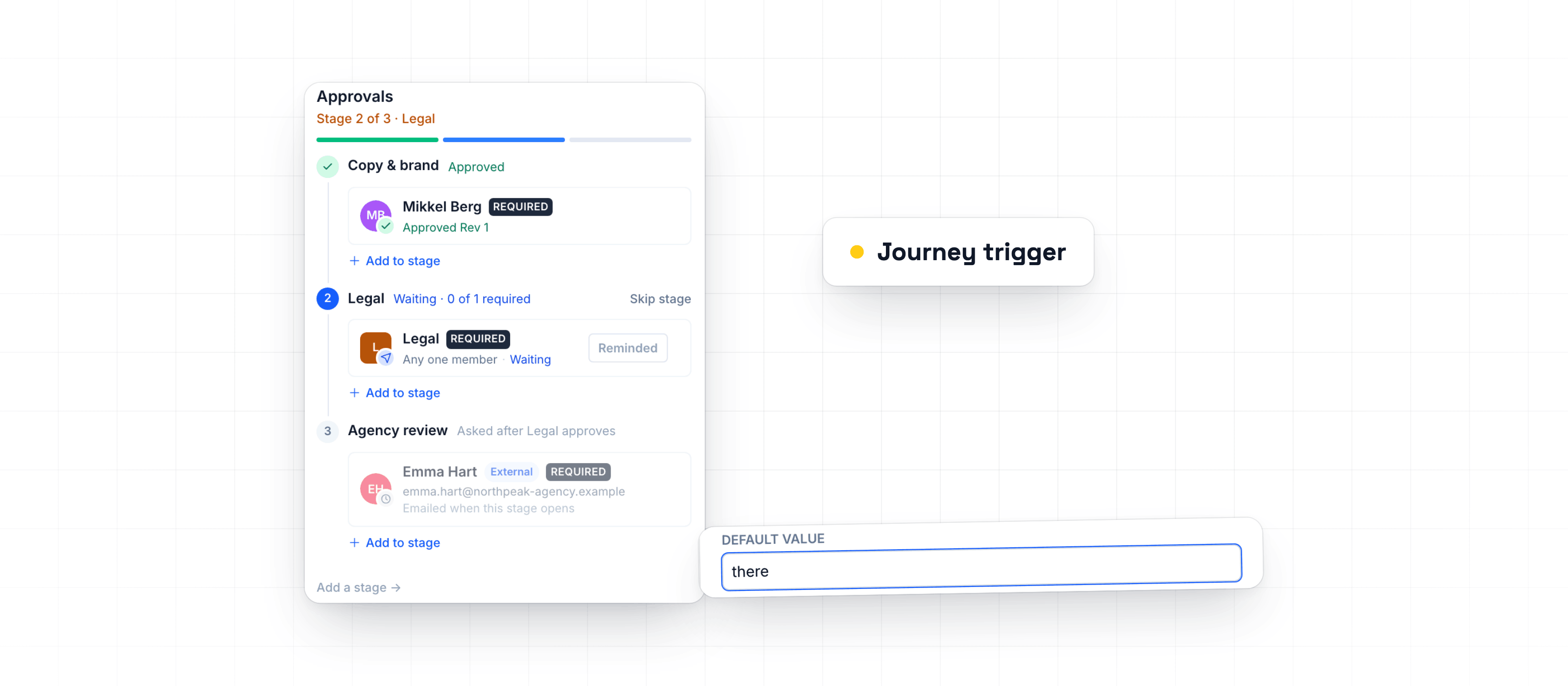
Set up approvals in stages, so Legal is asked only after your editors approve, and add a Group as an approver. Give a Recipient Field a default value, and use journey trigger values in Dynamics 365 emails.
Approval stages and Group Approvers
Approvals can now happen in order. On a Campaign's Approvals tab, click Add a stage → under the approvers and add people, Groups or External Reviewers to it. Only people in the open stage get a request. When everyone required in it has approved, the next stage gets its request automatically, and External Reviewers in a later stage get their email when their stage opens. People in later stages can comment now and approve once their stage opens. The Campaign list and the Campaign overview show where it stands, for example Stage 2 of 3 · Legal.
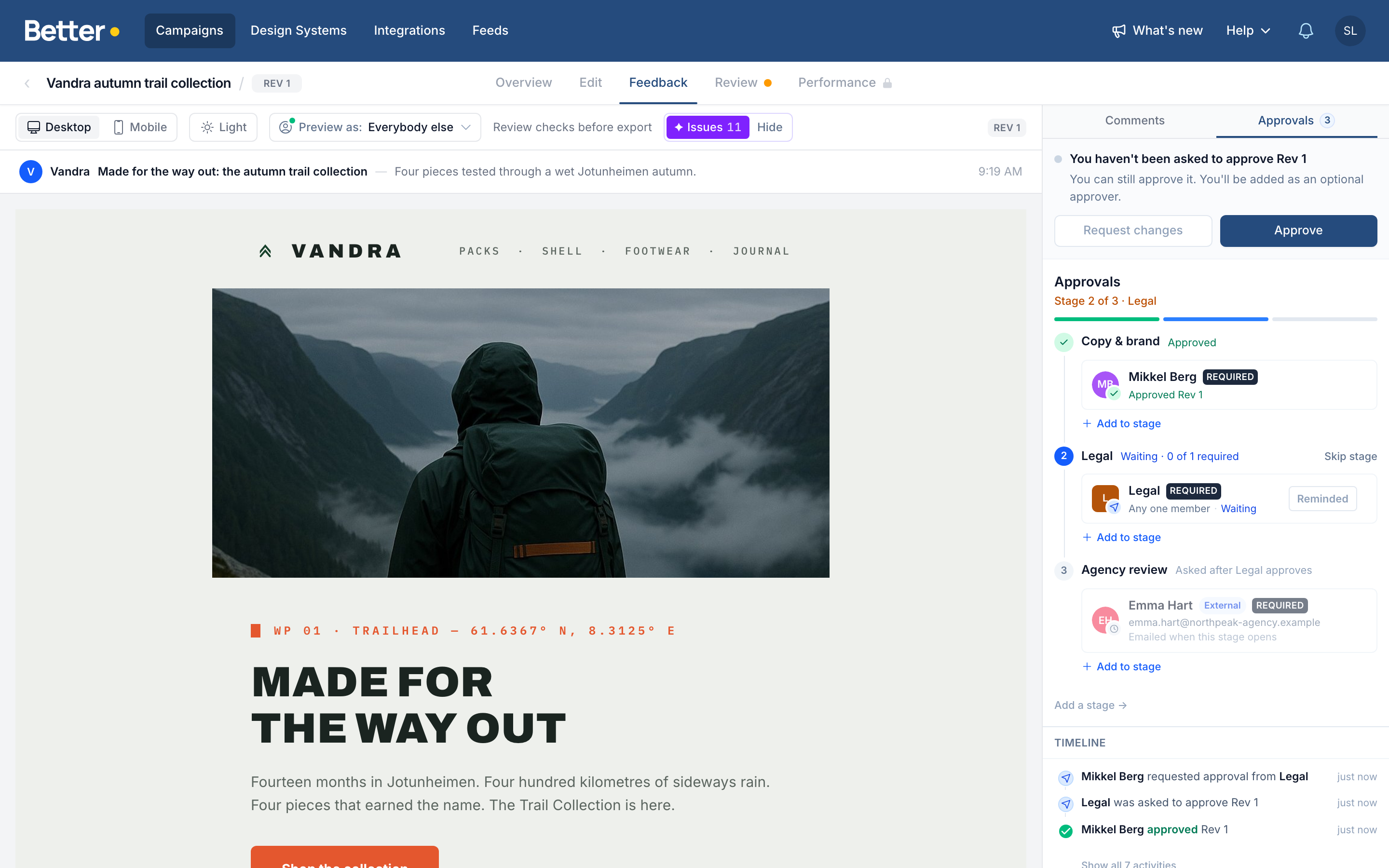
When your Organization uses Groups and you need anyone from Legal rather than a named person, add the Group as an approver. Its members are asked, and any one member's approval counts for the Group. The person who created the Campaign can't approve for a Group they belong to. An admin can click Skip stage when a stage isn't needed for this Revision, and the skip is logged. Export still needs every required approval on the latest Revision, except in a skipped stage. A new Revision starts again at stage 1, and a skip doesn't carry over. An admin can set up stages on a Campaign Type, and new Campaigns of that type start with them. See approval stages.
Default values for Recipient Fields
A text Recipient Field can now have a default value, which the email shows when a recipient has no value of their own. An admin sets it under Default value on the field, and "Hi [first_name]" reads "Hi there" for anyone without a first name. To use a different default in one place, write [first_name|friend]. To leave it out there, write [first_name|].
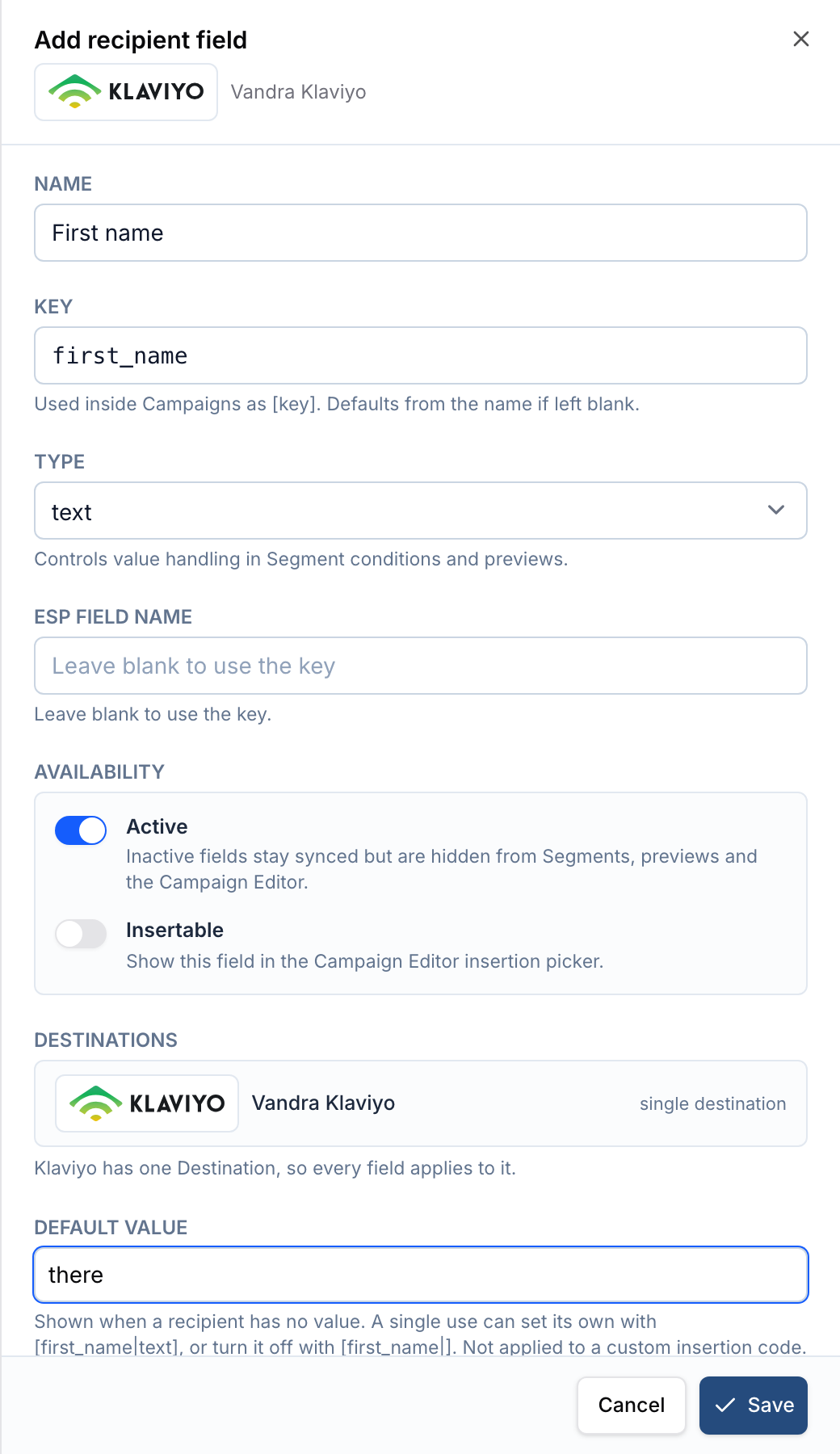
The default goes out with the export, so recipients see it in the sent email. It works with Braze, Bloomreach, Customer.io, Iterable, Klaviyo, Salesforce Marketing Cloud and Dynamics 365 Customer Insights - Journeys. With other ESPs, or a field with a custom insertion code, the default isn't exported.
Trigger fields for Customer Insights - Journeys
Journeys emails can now use values from the event that started the journey, such as "Booking created › Arrival date". After a Recipient Field sync, you'll find fields from every trigger that can start a journey for your audience. Choose the Journey trigger in Campaign settings, or set it on the Campaign Type, and the editor offers that trigger's fields to insert and to use in conditions. See trigger fields.
In the Journeys designer, placeholders now have readable names, such as FirstName or FirstNameOrGuest. Syncing an email again no longer removes placeholders you bound in the designer.
Improvements
- IntegrationsIn a Campaign on a Salesforce Marketing Cloud Destination, click Choose from Content Builder in an image field to pick from that business unit's images. An admin connects it in Settings → Betty AI → Connectors, and it replaces Cloudinary as your Asset Library.
- IntegrationsCustomer.io exports now include the subject line, the preheader, and the From and Reply-to sender you pick for each Destination. You can also sync to a transactional message, and turn on Sync performance data to see results on the Performance tab.
- IntegrationsIn Settings → Link tagging, tick Add the Variant name when the link is in a Variant on a parameter so your reports tell Variants apart. Automatic values no longer show as a field under every link. An admin can tick Let editors change it on each link to bring it back. Image links without text now use the image's alt text as link text, so with the Google Analytics preset your next export adds
utm_contentto them. - Campaign EditorTest emails now have the subject "TEST: " plus the email's subject line instead of the email's name, with preview values for Recipient Fields.
- Betty AIIntegrationsAn admin can turn on Let automations start Betty's work on the monday connector, and a monday automation that assigns Betty starts her work in the name of the person who set it up.
Fixes
- IntegrationsLink tagging now also tags the button link Outlook desktop follows, so clicks in Outlook keep their UTM parameters.
- Campaign EditorThe subject line and preheader length checks no longer flag Salesforce Marketing Cloud subjects with personalization as hundreds of characters long.
Two weeks of Better Email in one email
What we shipped, new blog posts and tips from our tests in real email clients. Every second week.
Unsubscribe with one click. Privacy policy