Betty in Slack, Content Blocks and relative dates

Simon Westh Henriksen
Co-founder and CTO
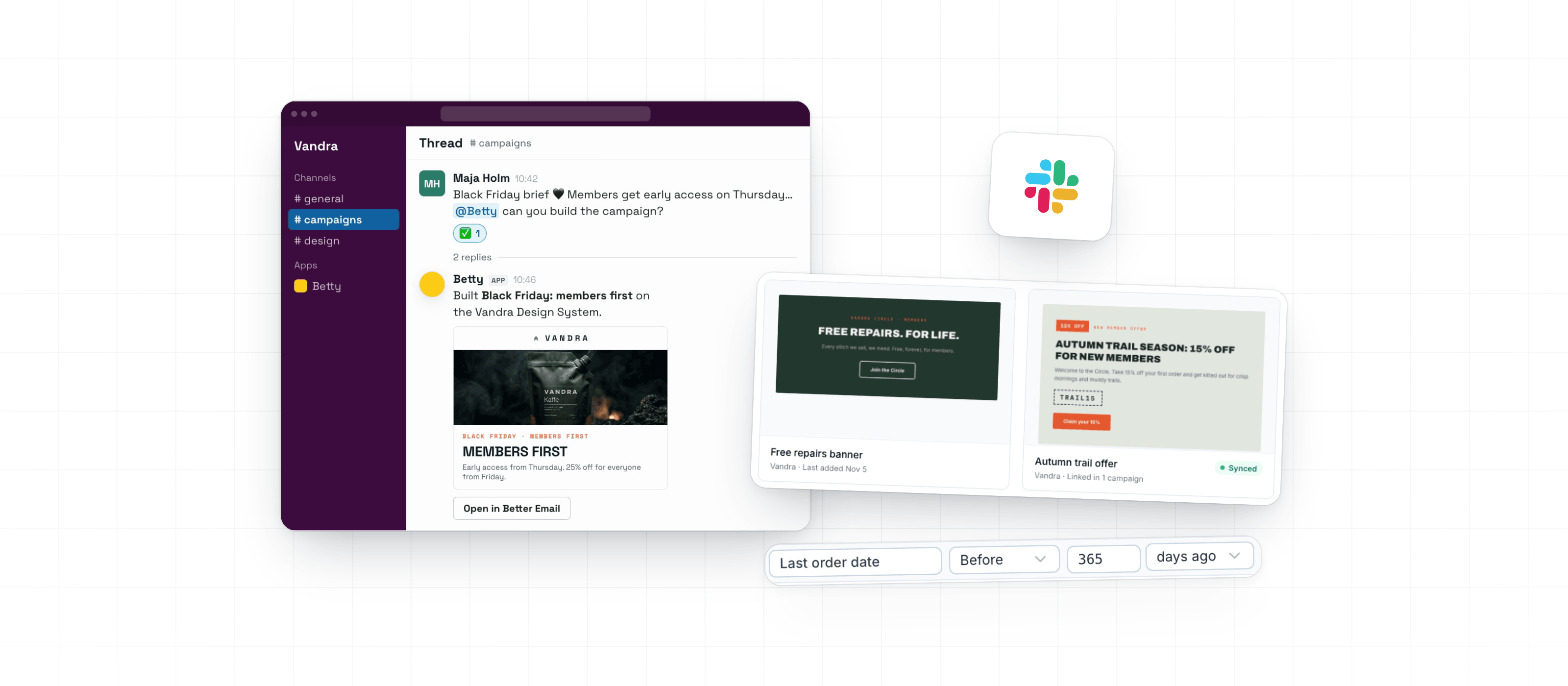
Mention Betty in Slack and she builds the Campaign from the thread, and your notifications can arrive there too. Reuse sections across Campaigns as Content Blocks, and write date conditions such as "arrival within the next 14 days".
Betty in Slack
An admin adds Betty to your Slack workspace under Settings → Betty AI → Connectors → Slack. Then mention @Betty in a thread with the brief, or message her directly. She reads the thread and its images, builds the Campaign on your Design System, and replies with a summary, a picture of the email and an Open in Better Email button. To change something, mention her again in the same thread and she updates that Campaign.
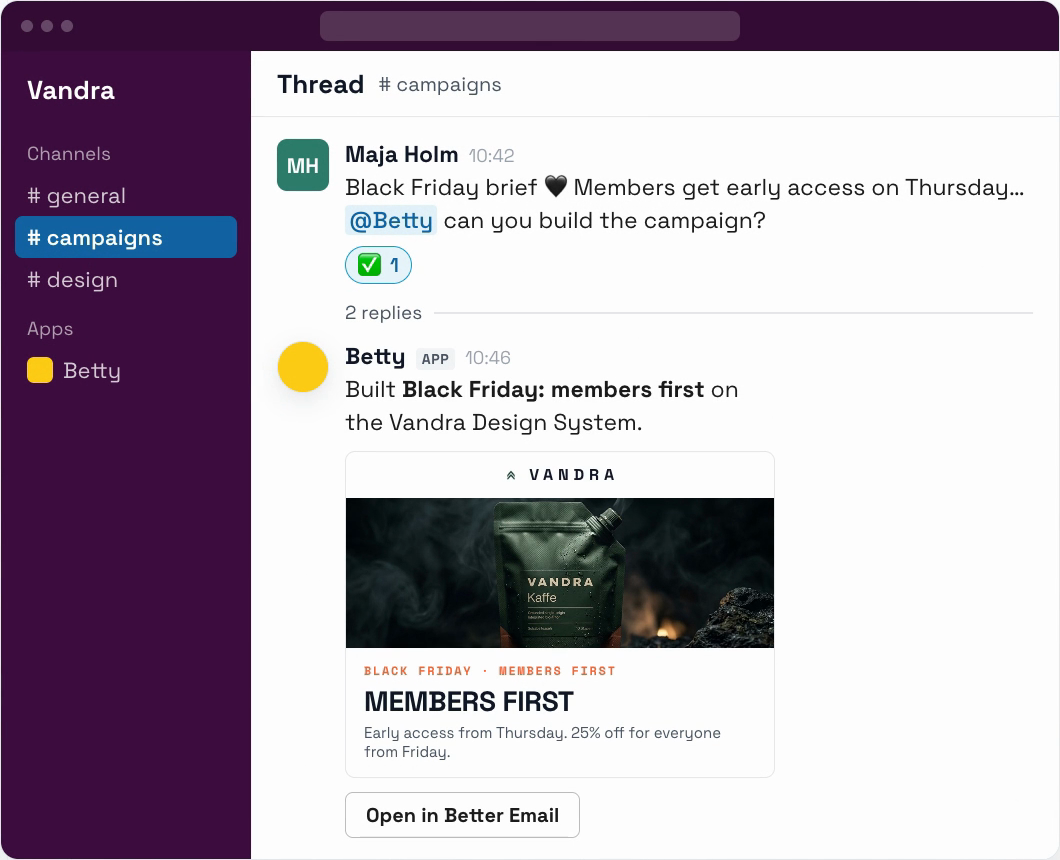
Betty can only do what the person who asked can do in Better Email, and they need a seat. She finds people by the email on their Slack profile. If yours is different, link your Slack account once on the same page. On paid Slack plans you can also open Betty from Slack's top bar and ask her to build from a brief in the channel you're reading.
Once Slack is connected, Betty also sends you your notifications as Slack messages: approval requests, mentions, change requests, approvals, comments, and a note when work you asked for in the app is done. Pick which ones you get under Settings → Notifications. See Slack.
Content Blocks
A Content Block is a section you build once and reuse, such as a members' banner, an offer or a legal line. Build one under Campaigns → Content blocks, or hover over a Block in a Campaign and click Save as Content Block. Campaigns on the same Design System list your Content Blocks below the Modules. Adding one puts a copy in the Campaign, and later edits to the Content Block don't change that copy.
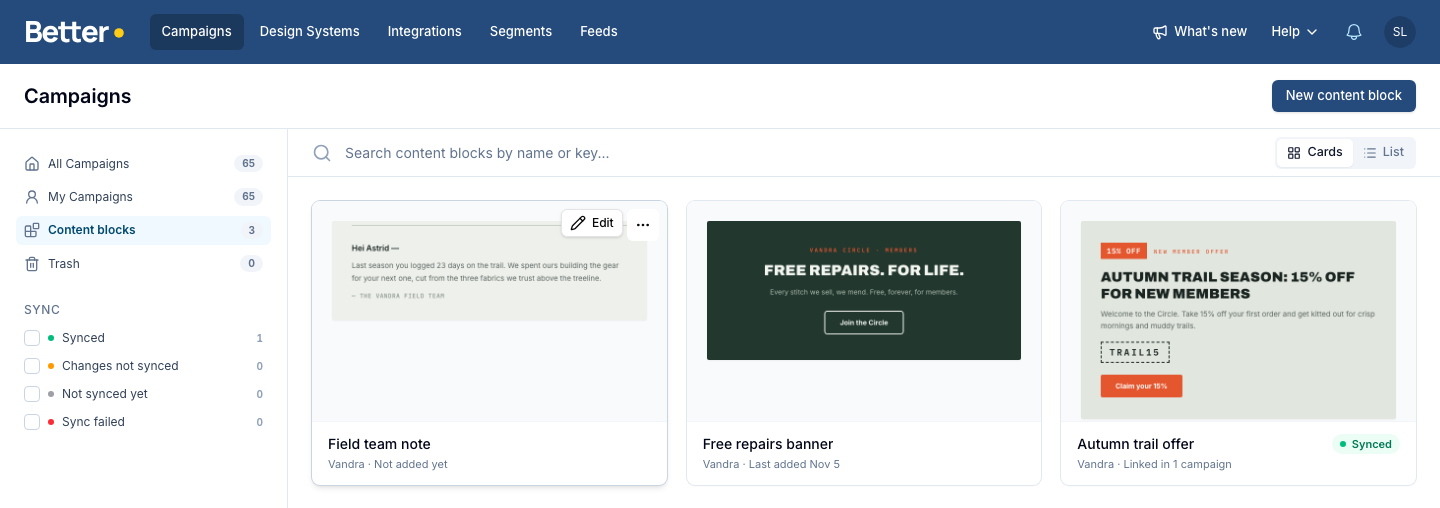
On Braze and Salesforce Marketing Cloud, a Content Block can also sync as a Braze Content Block or a Content Builder block. Campaigns on that integration then link it instead of copying it, and one sync updates every email that uses it, including Canvases and journeys that are already running. See Content Blocks.
Dates relative to today
A date condition can now count from today. Next to the value, choose days from now or days ago, or use the new Within operator: "Arrival date within the next 14 days" or "Last order date before 365 days ago". It works in Segments, Block variants, and subject line and preheader variants.
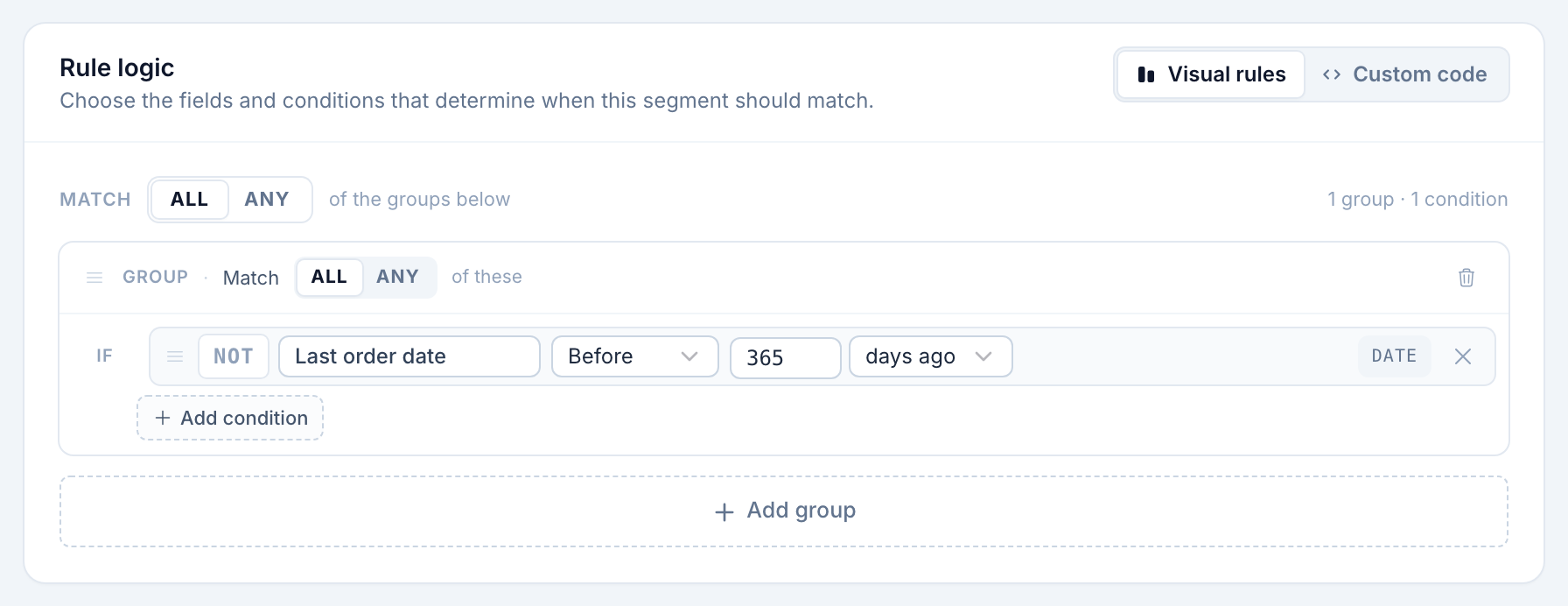
Your ESP works out today's date, in UTC, when it builds the message, so in a journey the condition checks the day each recipient reaches the email. Relative dates work with Dynamics 365 Customer Insights - Journeys, Salesforce Marketing Cloud, Braze, Iterable and Bloomreach Engagement. If a Campaign moves to another ESP, the email check Date conditions work in this Integration blocks export. See Dates relative to today.
Improvements
- IntegrationsConnect Bynder as your image library in Settings → Betty AI → Connectors. Editors then pick images from Bynder collections in any image field, and Betty can search it. See Bynder.
- Workspace & adminNew Campaign inside a Folder now starts the Campaign in that Folder.
- IntegrationsOn Salesforce Marketing Cloud, the Performance tab leaves out test sends whose subject starts with
[Test]. A send that's still scheduled shows as Scheduled in the Campaign list until it goes out. - IntegrationsWhen a Dynamics 365 journey branches on a link click, each link now has a name from its text or image alt text. Names you change in Journeys stay when you sync the email again.
Fixes
- IntegrationsContent behind a NOT condition or a nested group of conditions went to the wrong recipients on Customer.io and Braze. If you synced one, sync it again.
- Campaign EditorRemoving a Block's last segment moved the Block, sometimes to the top of the email, and dropped edits made to "Everybody else". The Block now stays in place and keeps that content.
Two weeks of Better Email in one email
What we shipped, new blog posts and tips from our tests in real email clients. Every second week.
Unsubscribe with one click. Privacy policy